Best Monitor for MacBook
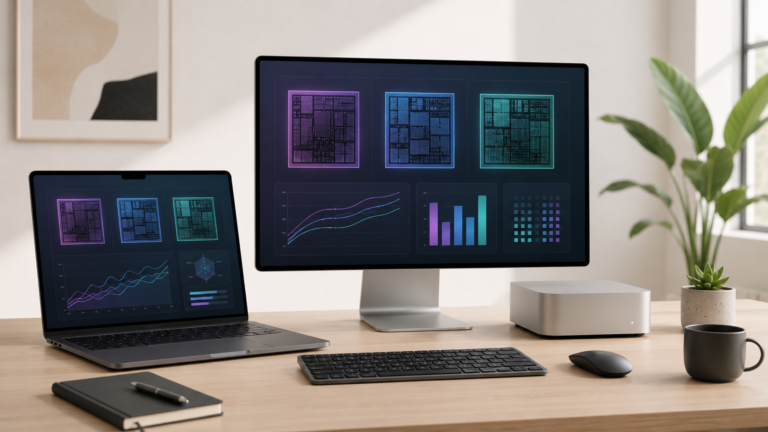
A good monitor can make a MacBook feel like a full desktop setup. The best monitor for a MacBook depends on how you work: office tasks, creative projects, coding, video editing, photo work, school, or a home office desk.
Most MacBook users should start with a quality USB-C monitor.
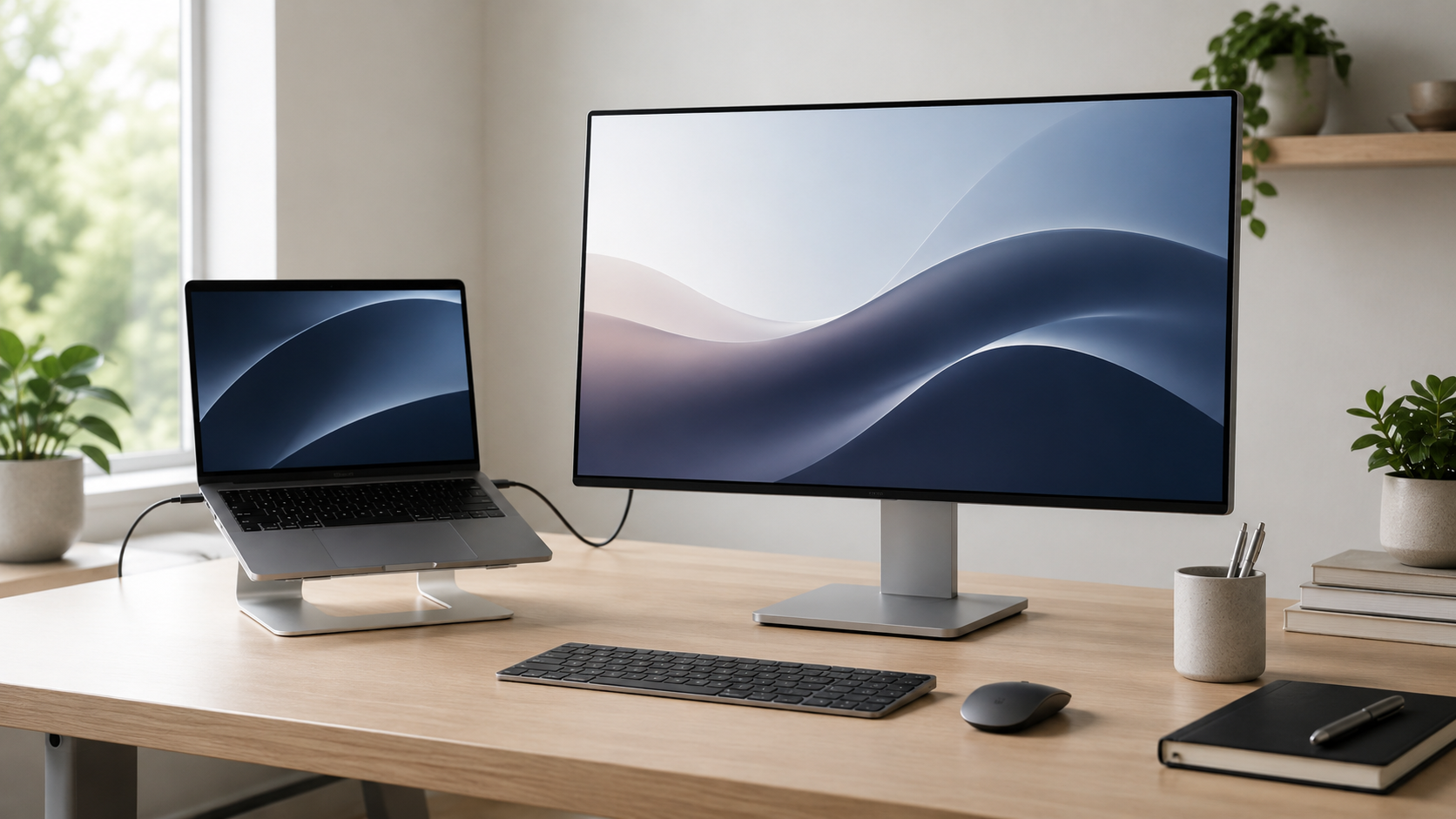
A USB-C monitor keeps the setup simple because one cable can often handle display output and charging. Most buyers should prioritize screen size, resolution, text clarity, color quality, ports, and desk comfort before chasing the most expensive display.
USB-C monitor
The easiest recommendation for most MacBook users because it keeps the desk setup clean and simple.
27-inch monitor
A strong size for office work, browser tabs, documents, spreadsheets, writing, and remote work.
Color-focused display
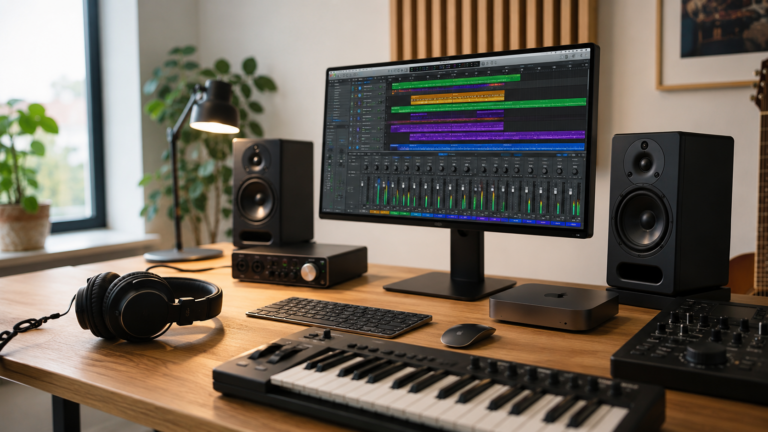
Better for photo editing, design, video work, and anyone who needs more accurate visuals.
Monitor with hub features
Useful if you want to connect storage, keyboard, mouse, webcam, speakers, and other desk accessories.
Choose the monitor that improves your daily work, not just the biggest screen.
A bigger monitor is helpful, but clarity, scaling, ports, color quality, adjustability, and desk comfort matter more than size alone. The right display should make your MacBook easier to use for hours at a time.
What matters most in a MacBook monitor?
Resolution and clarity
Text clarity matters if you read, write, code, use spreadsheets, or work with documents all day.
USB-C or Thunderbolt
A single-cable setup can reduce clutter and make docking your MacBook much easier.
Screen size
A 27-inch display is a comfortable starting point for many desks, while larger screens can help heavy multitaskers.
Color quality
Creators should care more about color accuracy, brightness, and consistency than casual users.
USB-C monitor vs basic HDMI monitor
Recommended monitor by buyer type
Remote worker
USB-C monitor. Best for video calls, documents, dashboards, tabs, email, and everyday productivity.
Student
Simple external monitor. Great for studying, research, papers, notes, and turning a dorm desk into a better workspace.
Creator
Color-focused display. Better for photo editing, design, video timelines, and visual work.
Power user
Larger or dual-display setup. Best for coding, spreadsheets, multitasking, and heavy desk workflows.
How much should you spend on a monitor?
For most MacBook users, the best value is a monitor that improves comfort and productivity without costing more than the MacBook needs. Do not buy the largest display just because it looks impressive.
If you work all day at a desk, the monitor is worth taking seriously. A better display can reduce eye strain, improve multitasking, make text easier to read, and make the MacBook feel much more like a full desktop computer.
Final recommendation
For most people, a quality USB-C monitor is the best choice for a MacBook. It keeps the setup clean, improves comfort, and makes everyday work easier.
Choose a basic HDMI monitor if you are on a budget or already own one. Choose a color-focused or larger display if your work depends on creative accuracy, screen space, or long hours at the desk.
Keep comparing before you buy.
| Accessories Guide | MacBook Air vs Pro |
| Home Office Mac | Best Mac Deals |
Affiliate disclosure: As an Amazon Associate I earn from qualifying purchases. Some buttons on this page may be affiliate links, meaning ShopMac may earn a commission at no extra cost to you. Recommendations are based on what makes sense for buyers, not the highest commission.