How Much Storage Do You Need on a Mac?
Mac storage is one of the easiest upgrades to underestimate. The cheapest configuration can look attractive, but running out of space later is frustrating, especially because internal Mac storage is not something most buyers can upgrade after purchase.
Most Mac buyers should avoid the smallest storage option if they plan to keep the Mac for years.
Light users can get by with lower storage if they rely on cloud storage and do not keep many large files locally. Most buyers are safer with a middle storage option. Creators, developers, photographers, video editors, and business users who keep large files should upgrade more aggressively or plan around external storage from day one.
Lower storage
Works for web browsing, email, documents, school work, streaming, and buyers who keep most files in the cloud.
Middle storage
The safest choice for everyday buyers who want room for apps, downloads, photos, documents, updates, and normal growth.
Higher storage
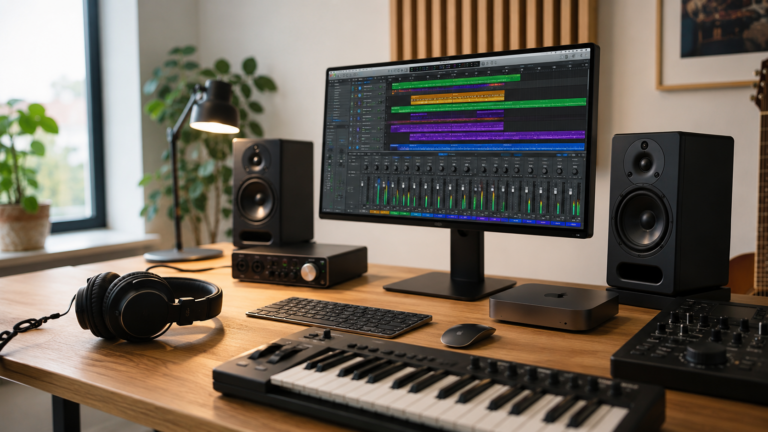
Better for photo libraries, video projects, design files, music sessions, large apps, and local creative work.
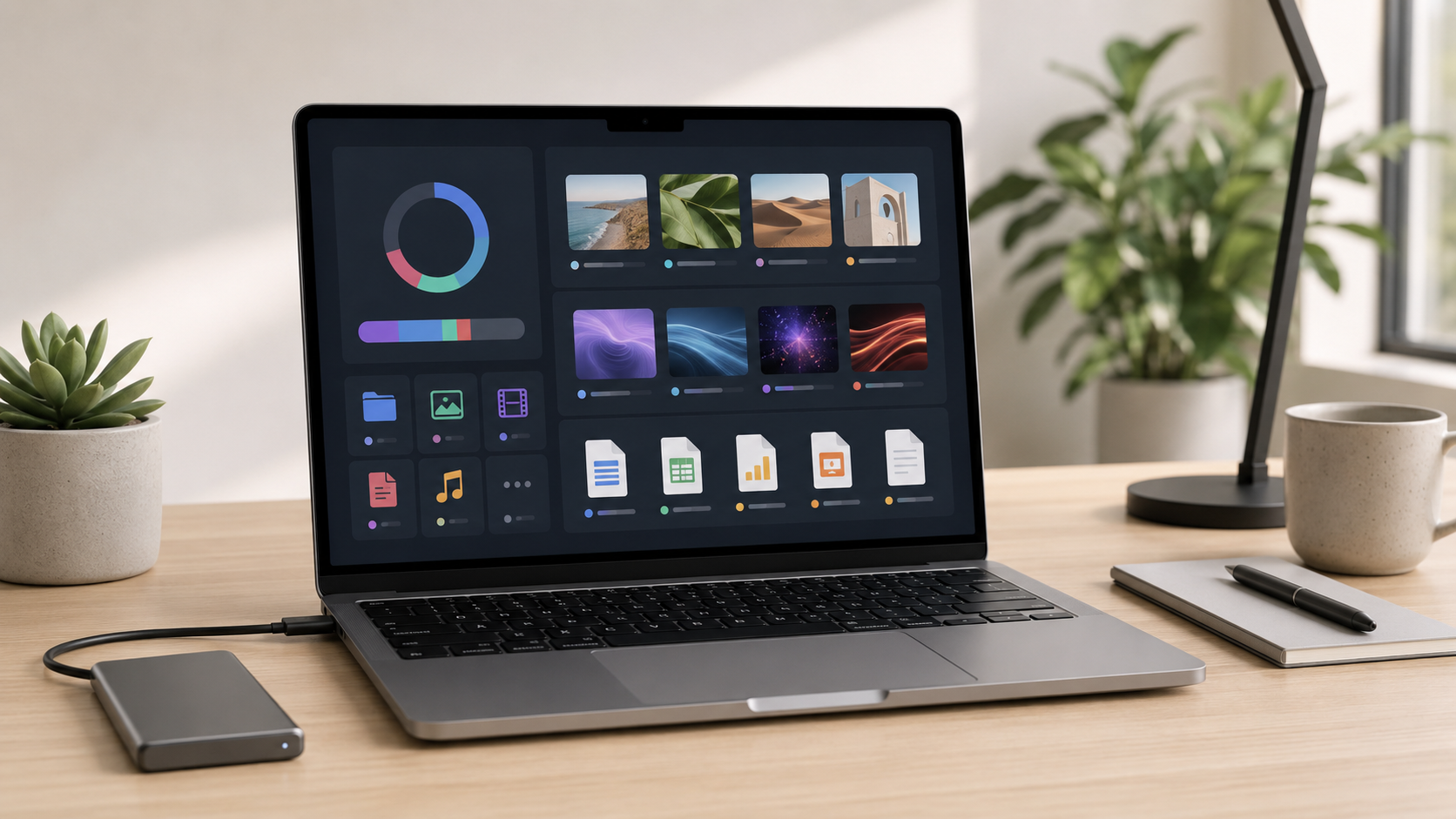
Internal plus external
Best when you need fast internal storage for active work and external drives for archives, backups, and large libraries.
Buy more storage if you hate managing space.
The cheapest storage option can work, but it usually requires better file habits. If you do not want to constantly move files, delete downloads, manage photos, clear caches, or rely on external drives, choosing more internal storage is usually worth it.
What takes up Mac storage?
Apps and system files
Creative apps, development tools, office apps, updates, caches, and macOS itself can take more space over time.
Photos and videos
Phone photos, camera files, edited video, exports, and media libraries can fill a Mac quickly.
Downloads and documents
PDFs, installers, ZIP files, work folders, school files, screenshots, and temporary files pile up faster than expected.
Projects and backups
Video projects, code folders, audio sessions, design files, virtual machines, and local backups can require serious space.
Internal storage vs external storage
Recommended storage by buyer type
Student or casual user
Lower to middle storage can work if most files are in iCloud, Google Drive, OneDrive, or school apps.
Remote worker
Middle storage is usually the safest balance for documents, downloads, apps, screenshots, meetings, and work files.
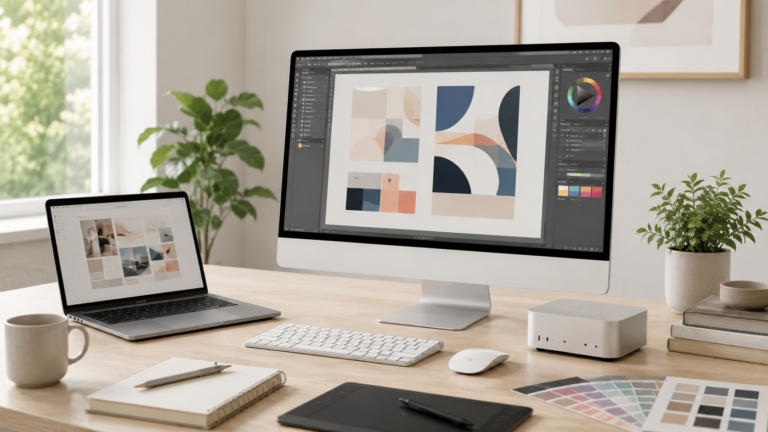
Creator or photographer
Higher storage is smarter if you keep photos, video, design files, music projects, or active client work locally.
Business or pro user
Choose enough internal storage for current work, then use external storage or cloud storage for backups and archives.
How much should you upgrade?
Storage upgrades are not always exciting, but they can make a Mac easier to live with. If the upgrade keeps you from constantly managing space, moving files, or deleting apps, it may be more useful than paying for a faster chip you barely use.
The best approach is to buy enough internal storage for your active files and apps, then use external drives or cloud storage for older files, archives, and backups. Do not rely on one copy of important files.
Final recommendation
Most buyers should avoid cutting storage too close. If you are buying a Mac to keep for several years, give yourself room for apps, updates, photos, downloads, work files, and future needs.
Choose lower storage only if your usage is light and cloud-based. Choose middle storage for most everyday buyers. Choose higher storage if you create, work with large files, travel often, or simply do not want storage management to become a constant chore.
Keep comparing before you buy.
| MacBook Air vs Pro | Creator Guide |
| Remote Work Guide | Best Mac Deals |
Affiliate disclosure: As an Amazon Associate I earn from qualifying purchases. Some buttons on this page may be affiliate links, meaning ShopMac may earn a commission at no extra cost to you. Recommendations are based on what makes sense for buyers, not the highest commission.