Why Some Scanners Don’t Work With New Macs
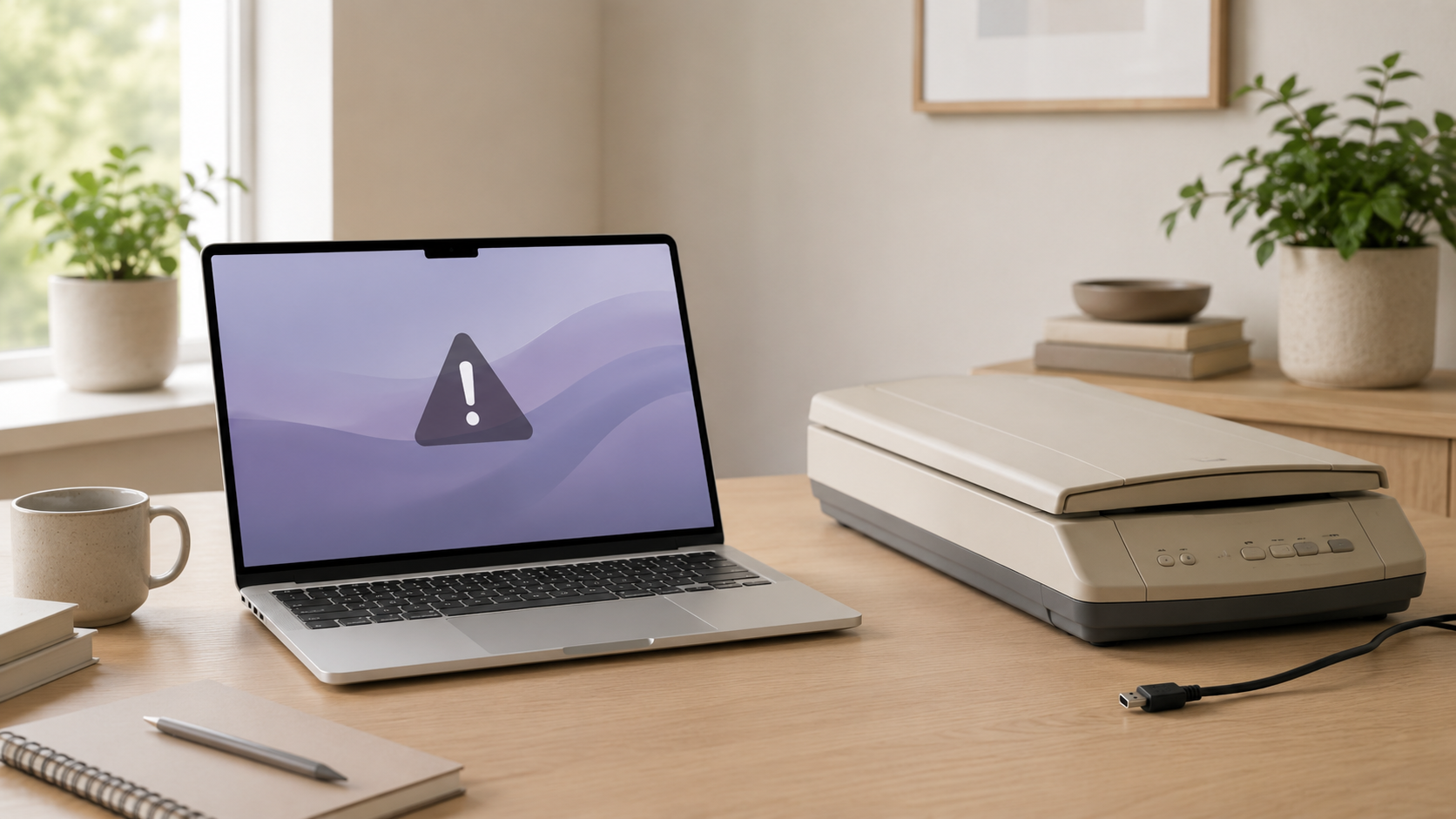
A scanner that worked fine with an older Mac or Windows PC may not work perfectly with a newer Mac. The problem is usually not the scanner glass itself. It is usually drivers, software support, macOS compatibility, Apple Silicon support, or outdated manufacturer utilities.
Most scanner problems come from outdated software or missing Mac support.
Newer Macs often need scanner software that supports current macOS versions and Apple Silicon. Some older scanners still work through built-in macOS tools, but others depend on manufacturer drivers that may no longer be updated.
Old drivers
Many scanners depend on drivers or utilities that were never updated for newer versions of macOS.
Apple Silicon support
Some older scanner software was built for older Intel-era Macs and may not work smoothly on newer machines.
Manufacturer apps
Scanner apps can stop working if the company stops updating them or changes support for macOS.
USB or network setup
Some problems come from cables, adapters, Wi-Fi scanning, printer/scanner combos, or network discovery.
Before replacing the scanner, check software support first.
A scanner may still physically work, but the Mac needs a supported way to communicate with it. Check the manufacturer’s current Mac software, macOS compatibility, built-in Image Capture support, and whether the scanner works over USB or network.
Why scanner compatibility breaks
Driver support
Older scanner drivers may stop working after macOS changes or when the manufacturer ends support.
Scanning software
Some scanners rely on brand-specific apps instead of working cleanly through built-in Mac tools.
Connection method
USB adapters, hubs, network scanning, and printer/scanner combo devices can all create setup issues.
Age of the scanner
Older scanners may be fine mechanically but unsupported by modern software.
Old scanner vs new Mac-compatible scanner
Recommended fix by scanner situation
Occasional home scanning
Try Image Capture, current manufacturer software, and a direct USB connection before replacing it.
Office scanning
Use a scanner with current Mac support, reliable document feeding, and a workflow that does not require constant fixes.
Photo scanning
Check software carefully. Photo scanners often depend on specific apps, color tools, and driver support.
Network scanner
Verify Wi-Fi, Ethernet, printer/scanner discovery, permissions, and whether the device supports modern macOS scanning.
What should you check before buying a new scanner?
Before buying a replacement, check the manufacturer’s Mac software page, supported macOS versions, Apple Silicon notes, and whether the scanner works with built-in Mac scanning tools. Do not assume every scanner works perfectly with every new Mac.
If scanning is important for work, school, legal documents, or business records, reliability matters more than saving a little money on an older unsupported model.
Final recommendation
Some scanners do not work with new Macs because the software around the scanner is outdated, unsupported, or incompatible. The scanner itself may be fine, but the Mac still needs current software to use it properly.
Try current drivers, Image Capture, a direct connection, and manufacturer support first. If the scanner remains unreliable, buying a newer Mac-compatible scanner is usually the better long-term answer.
Keep comparing before you buy.
| Best Mac Scanners | Best MacBook Accessories |
| Mac Storage Guide | Best Mac Deals |
Affiliate disclosure: As an Amazon Associate I earn from qualifying purchases. Some buttons on this page may be affiliate links, meaning ShopMac may earn a commission at no extra cost to you. Recommendations are based on what makes sense for buyers, not the highest commission.